Navigating the Pisces Interface (Trails)
Navigating the Pisces Interface
A comprehensive guide to navigating the Pisces dashboard, calendar, and workspaces.
## Dashboard and Calendar
Step 1
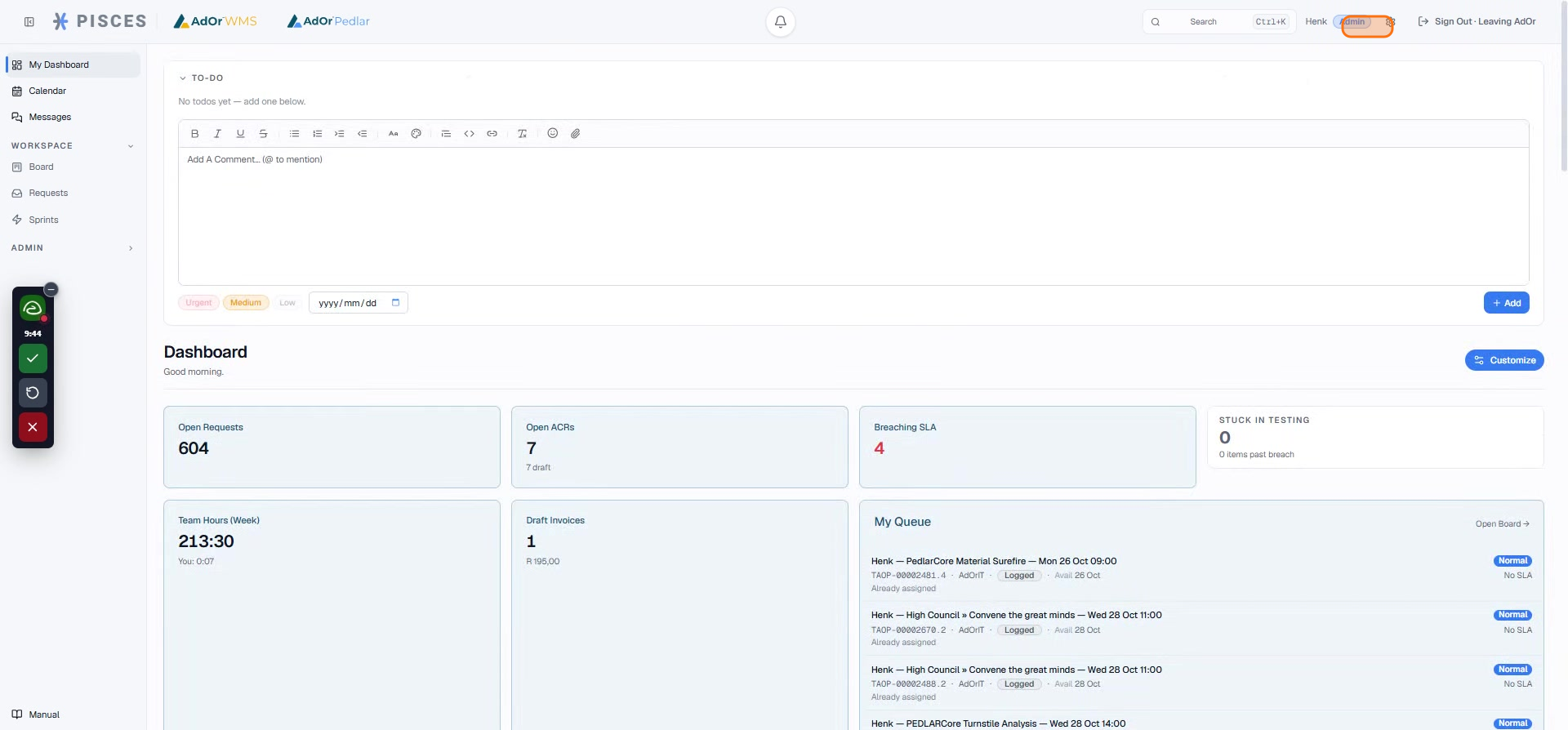
Upon logging in, you’ll find yourself on the Pisces dashboard. This central hub displays your assigned role, such as ‘admin,’ and conveniently lists all items currently associated with your account.
Step 2
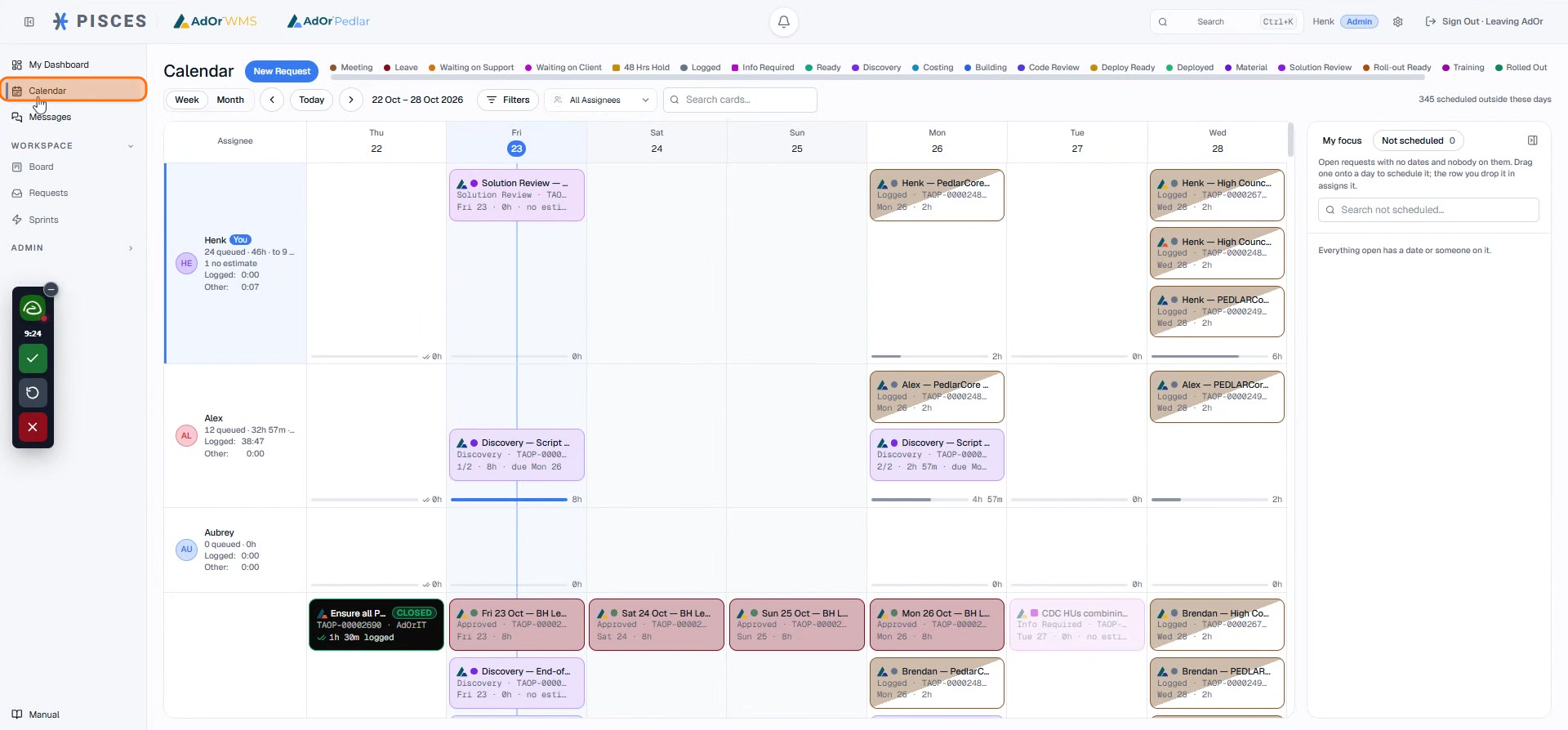
Next, you can navigate to the calendar view. This allows you to easily see the workload and specific cards assigned to any team member on a given date.
## Workspaces
Step 3
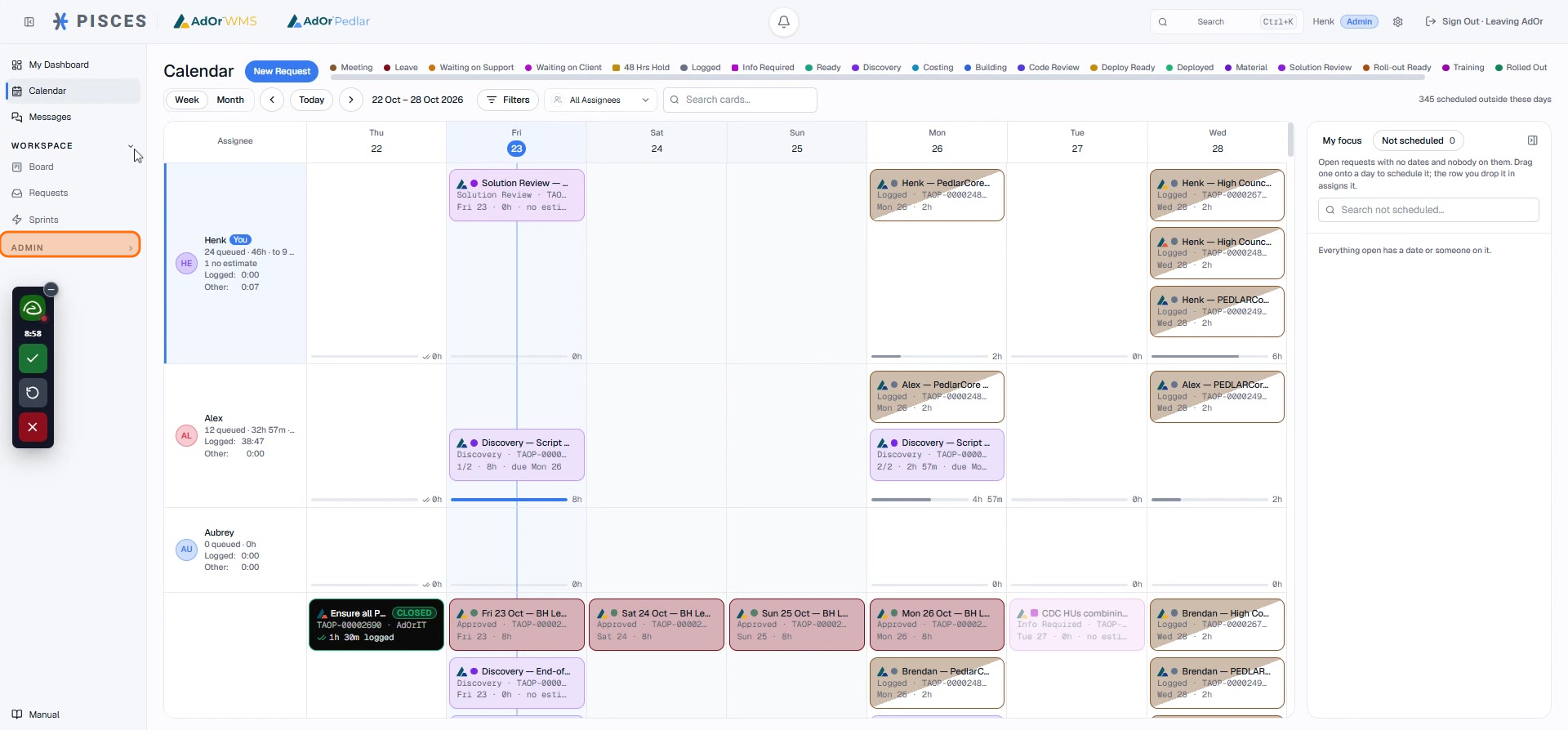
Go ahead and open one of your workspaces, for example, the Admin workspace.
Step 4
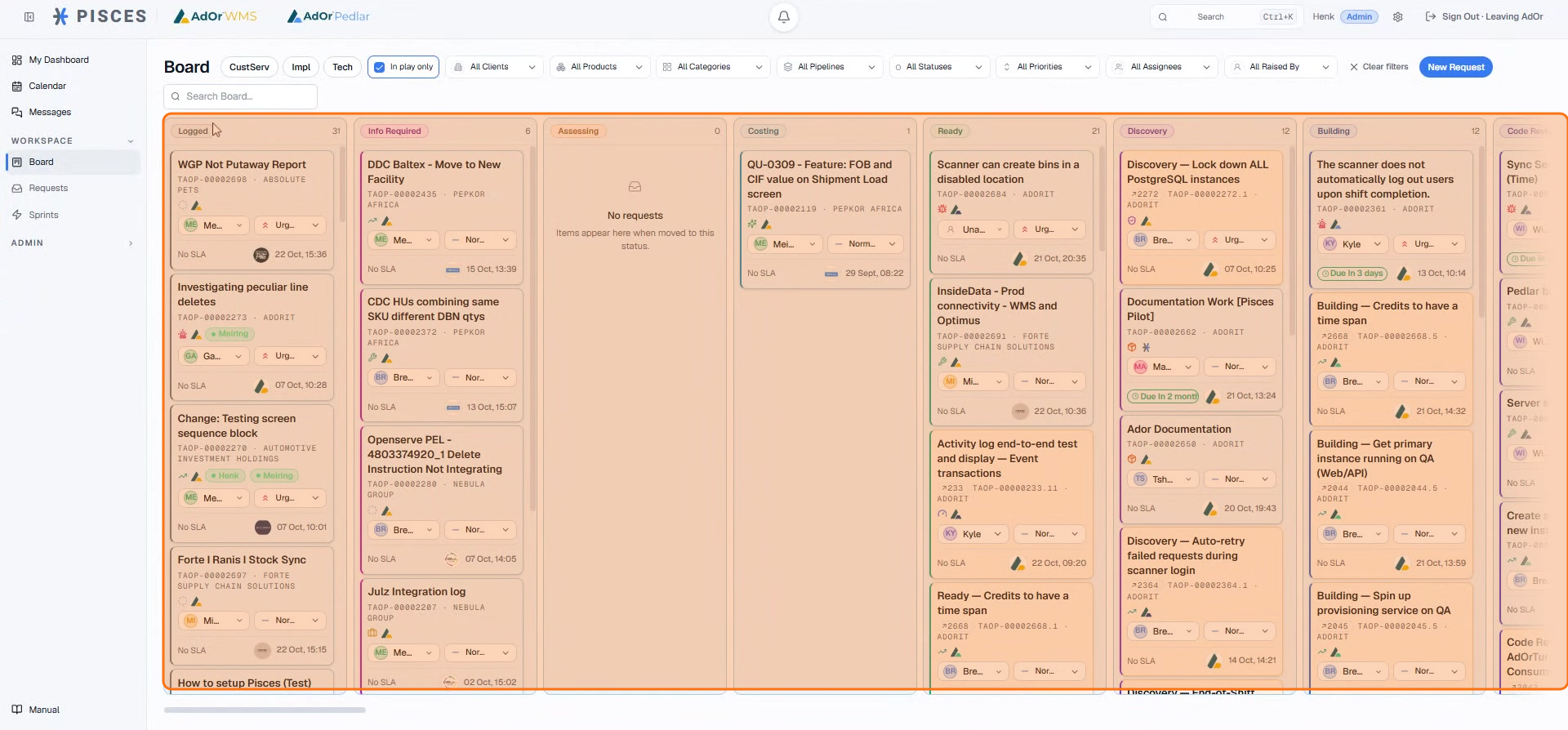
Once inside, you’ll notice the board organizes cards by pipeline categories, giving you a clear overview of where each card is situated within the workflow.
Step 5
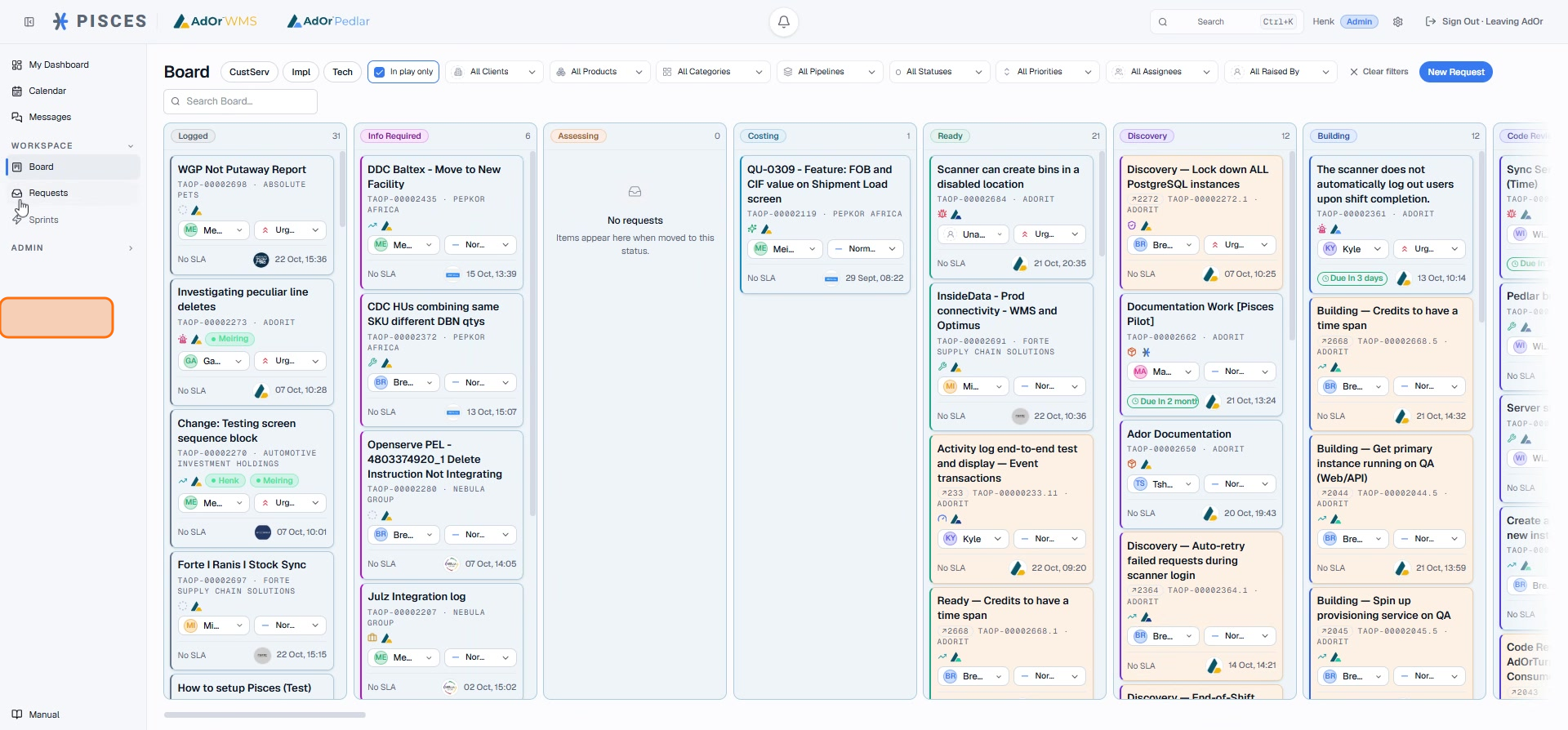
From your workspace, you can click on Requests to view any new incoming items. Additionally, this screen provides the option to create a new request directly.
Step 6
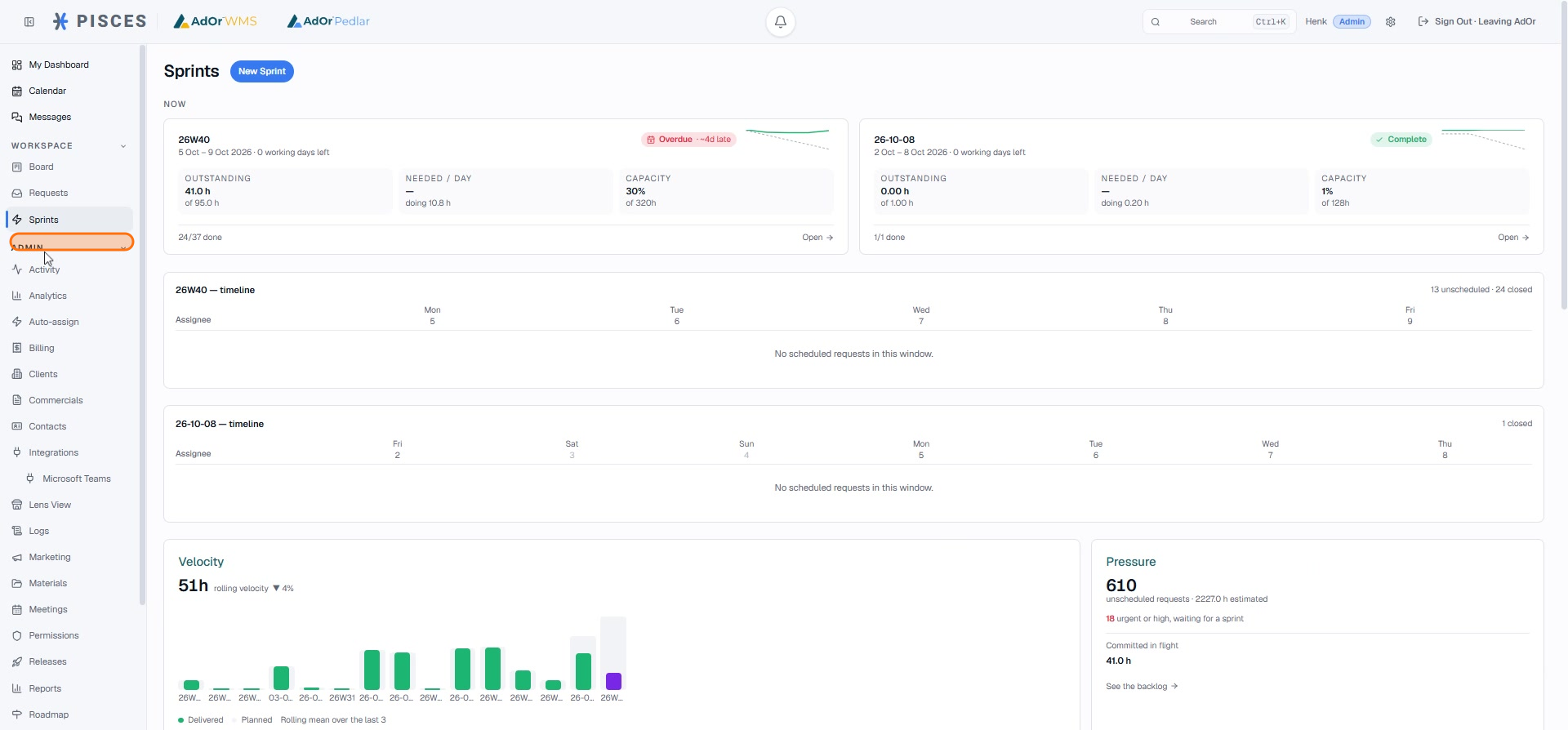
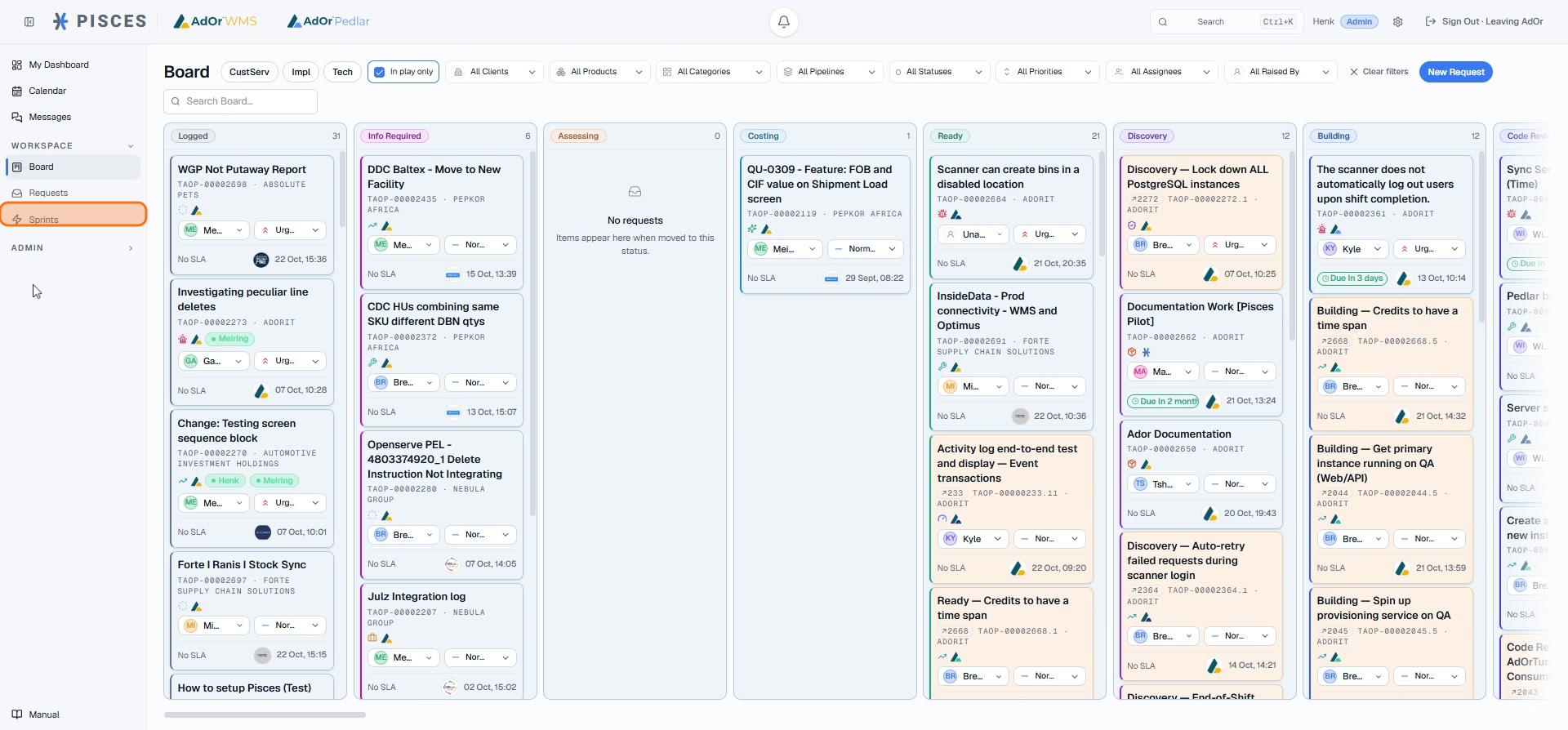
Next, access the Sprints section. Here, you can view and efficiently manage all your sprint-related tasks.
Step 7
Finally, navigate to the Admin section. This area provides access to various administrative settings and configurations for your workspace.