How to: Setup Pisces
How to: Setup Pisces
Category: How-to guide
Module: Pisces (Admin)
Audience: Internal
Owner: Mario
Version/status: v1.0 · Draft
Last changed: 2026-10-19 · TAOP#
Related: Pisces: reference · How Pisces works
Goal
Get Pisces ready for your team and clients to use. Do this once, when a new company (tenant) starts on Pisces, or when you need to redo the basics.
Before you start
- You must be an Admin in Pisces.

- Section A can only be done by the SuperAdmin account. Ask them if you are not the SuperAdmin.
- Have these lists ready:
- Your clients and their email domains (for example acme.co.za)
- Your staff and the job each one does
- The client people who need to log in
- A Microsoft Teams channel for alerts (optional)
Steps
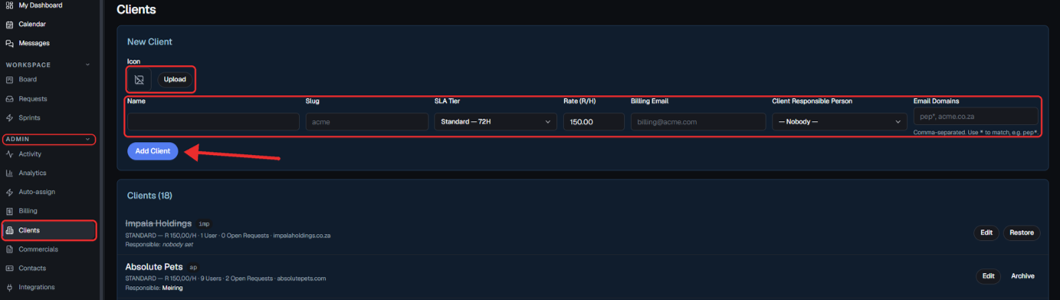
A. Add your clients
- Go to Admin → Clients and click New client.
- Enter the client’s name, SLA tier, hourly rate and billing email.
- Enter the client’s email domain, for example acme.co.za. Never use gmail.com or similar.
- Upload the client’s logo and save. Repeat for each client.
B. Invite your staff
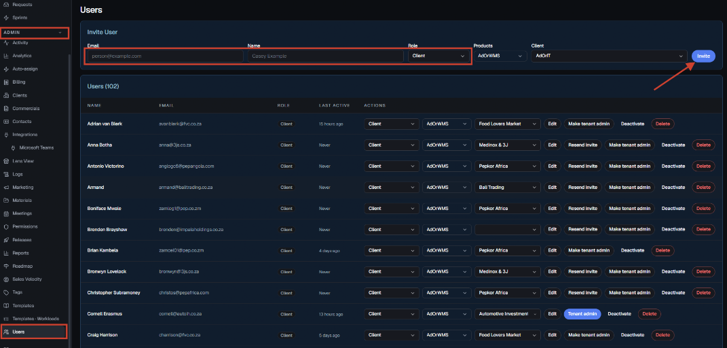
- Go to Admin → Users and click Invite user.
- Enter the person’s email.
- Pick their role:
- Task Force: developers and general staff
- Support Force: project managers
- Admin: only the people who run Pisces
- Leave Client empty and send the invite. Repeat for each person.
C. Invite client users
- On the same screen, click Invite user again.
- Set the role to Client and pick their company in Client.
- Set Product to WMS, Pedlar or both, and send the invite.
D. Set the shared settings
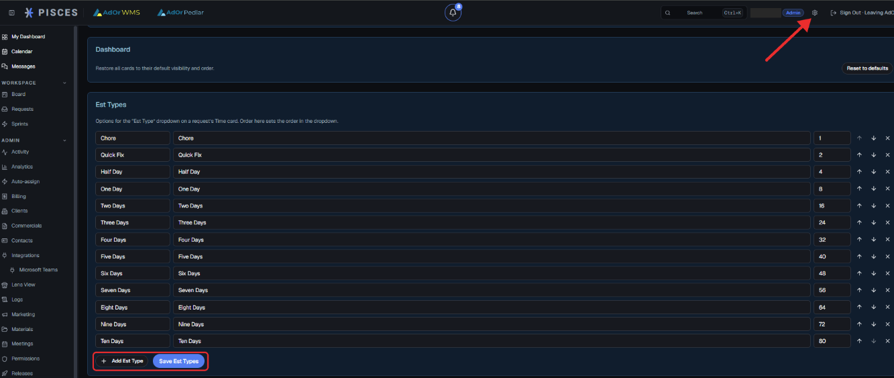
- Go to Settings.
- Under Est Types, add the job sizes your team uses, each with its usual hours.
- Under Releases: stale thresholds, set how many days testing may take before it is flagged. Leave blank to use the default.
E. Add templates
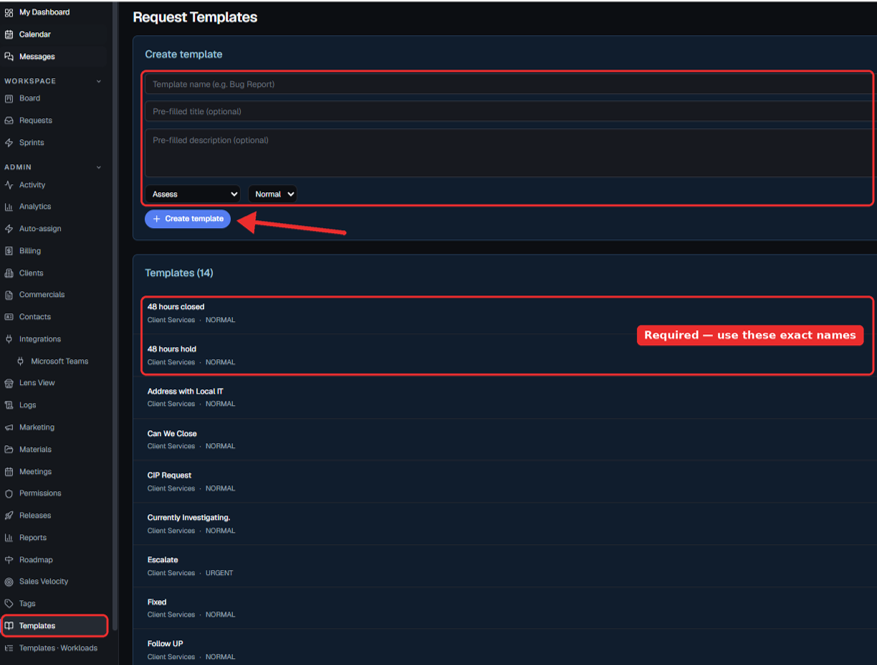
- Go to Templates and click to add a template.
- Create two templates named exactly 48 hours hold and 48 hours closed. Pisces uses these names to hold and close quiet tickets.
- Add any other templates your team often needs.
- Go to Templates · Groups and add a template for each pipeline. Name it Product — Pipeline, for example WMS — Build.
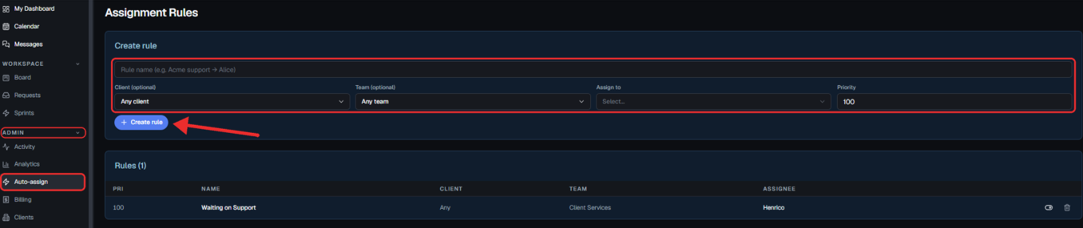
F. Route new work automatically
- Go to Admin → Auto-assign.
- Add a rule: pick a client and/or team, then the person who should get that work.
- Make sure Active is on and save.
G. Connect Microsoft Teams (optional)
- In Teams, open your channel and go to Connectors → Incoming Webhook.
- Copy the web address it gives you.
- In Pisces, go to Admin → Integrations (Microsoft Teams), paste it and click Save.
H. Each person, on first log-in
- Open My Dashboard and click the Task Board card to connect your Microsoft 365 mail and calendar.
- Click the settings icon on the dashboard to choose which cards you see.
- Pick light or dark mode in Settings.
Result
You know it worked when:
- Your staff and clients can log in.
- A test request gets a number like TAOP-00001.
- The test request goes to the right person automatically.
- A message about it shows up in your Teams channel.
If something goes wrong
- The invite link doesn’t work: Links expire after 48 hours. Send a new invite.
- A new role isn’t showing: Ask the person to refresh the page or log in again.
- A client sees the wrong portal: Check their Product (C3).
- Client emails don’t reach the right client: Check the client’s email domain (A3).
- Tickets are not closing on their own: Check the two template names in E2 are exact.
- The Task Board card shows an error: Ask the Pisces administrator; see the Operator runbook.
- You can’t see a menu item: It may be for Admins only. Ask an Admin.
- You can’t delete a user: Click Deactivate instead. Only the SuperAdmin can delete.
Related
- Pisces: reference: every field, setting, role and permission (to be written)
- How Pisces works: why SLA tiers, products and templates behave as they do (to be written)
- Operator runbook: technical fixes for integrations
- AdOr Documentation Foundation Guide
- Client version: How to get started on the Pisces portal
Last updated on